顯示具有 Android 標籤的文章。 顯示所有文章

2017年1月16日 星期一

LiveCode Android External: Integrate Facebook and Google Login

I've used LiveCode for more than five years. As a Android developer using LIveCode, it always feel like there is less support for Android than iOS. Thanks to Monte, we have lots of iOS externals to use in LiveCode Indy. It will be great if we have all these externals in Android version. I have some experience about building Android external. So I decided to do it myself. I think it will definitely enhance people's intention to use LiveCode. Hope someday my external will be integrated into LiveCode Indy just like Monte did.

Start with Facebook and Google login function.

[Facebook]
First we need to initialize Facebook SDK.
on mouseUp                                           
     put haoFacebookInit("{APP_ID}")
end mouseUp                                        


Then open Facebook login view and pass the permissions you wish.
put haoFacebookLogin("email"&cr&"public_profile") into tResult


After successfully login we can get the access token. With access token, we are able to use the Graph API. Graph API can do a lot of things such as getting user name, id, photos even post photos almost anything.

put haoFacebookGetAccessToken() into tToken
GET URL ("https://graph.facebook.com/me?access_token="&tToken)

answer the urlResponse


[Google]
It's much easier to login to Google using LiveCode External. Just one command.


put haoGoogleAuthLogin() into tResult 

This command open Google login view.


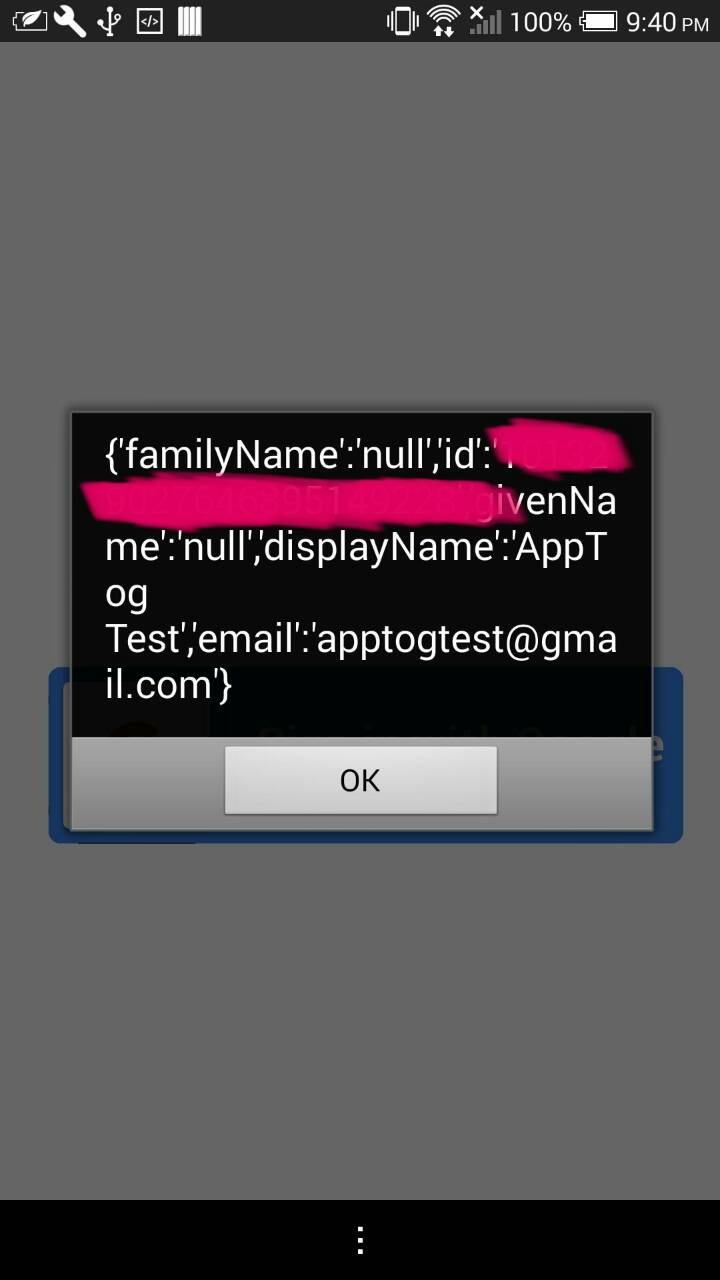
When successfully login. Account information will return to LiveCode. 


These two simple login function take me several days. It's a good start and I will try to build more and make them more stable.

2015年7月23日 星期四

Use LiveCode to Create Android Launcher

Few weeks ago, people ask me if LiveCode can create an android launcher. Today, I've make a quick demo. Surprisingly it's very easy to accomplish with my new external called "HaoUtil1". This external include some useful function in android environment. Such as, log message to Logcat, toast message on screen. One of these functions is to get all installed application's information(name, icon, package name etc.). So, here's the screenshot.


With this function, I can display all the apps. Here I pick only the first 9 apps.

By clicking these icons. It should open corresponding app. Here's comes another external function includes in HaoUtil1. "haoLaunchApp" can provide you the ability to open other apps that installed in your device, inside your LiveCode stacks.

To prove this is a real launcher app, click the home button on mobile phone.

You can see the two selection. One is HTC device default home(launcher) app the other is my LiveCode launcher.

This is a very rough demo. Still have lot of things to do. But it did verify that LiveCode really can do about just anything. So keep going LiveCoders :)

2014年8月4日 星期一

LCGMap -- Google Map on LiveCode

Google Map is a well know online map services and is widely used in mobile apps. I made this livecode program as module to plug into any other livecode programs. Google has release many functions' api. I just implement some of them. As you may see in this article and the demo videos.

The video link is here : http://youtu.be/PHU9I-CiRks

First thing to is to display a map with central point sets.
I set the center of this map to "台北" which is the Traditional Chinese for "Taipei". It's the capital city of Taiwan. Also set the zoom to 12. In my LCGMap, you can use either latitude and longitude or the name of that place to set the locations.

Next, I can add some markers to the position where I want. As you can see two maker field. One use latitude and longitude the other use English name of the location. Here's the result.

We can use the direction service of Google Map, too. Just set the start location and the end location. When I click "Direct" the route will calculate and draw on the map.

The second card show the Google Places service. It can find the restaurants, parks, banks and other types of places you are looking for. It can also set the radius for a fix location to find out the places in this area. In this demo I set the radius to 5000 meters as default. First I set the central location to Taipei city and search for the banks in 5000 meter radius.
When clicked the marker. It will show the name of this place.

Then I change the type to restaurant and search again. You can see the restaurants in this area.

I've accomplish just a few functions in Google Map. But these are some functions I often use. Maybe more when I have time:)

2014年7月17日 星期四

Android Socket for LiveCode

So many people using LiveCode are looking forward to have a socket on Android.
You can use socket on Windows, Linux, Mac OS and there is also an external for iOS.
Now, I wrote a socket external for Android.
Take a look at what I've done.

First, I use my notebook as a server which IP is 192.168.0.103
My Android mobile phone as a client which IP is 192.168.0.102

Here's my demo stack.I'm going to show you the function on TCP socket.
As you can see, the connection state on the top is "Closed" when I open the stack.
Laptop(left)  Android Phone (right)

when I hit "accept" the laptop start to act like a server to wait for connections in.
The connection state then change to "Waiting".
When the server is set up. I hit the "open" button on the Android phone. You can see the message tells that my phone is connected. The connection state change to "Connected" on the phone.
Next, when I hit button "write" on the laptop. There server will write a message which is type on the "Send Message" area. On my mobile phone I can hit button "read". The message that the server just send will be received on the phone.
On the other hand, when I hit button "write" on the phone. Server should have received the message. This time I change the message to "From Android Phone"

Finally, when I close the connection on either side. Both the laptop and the phone will call an close message then answer the close message. (I have not change the file descriptor to real IP on Android so you can see the 52 on the screen)
That's all for today! Hope you enjoy it!